Donation°AppearanceTemplate ThemesBuilt-in Template ThemesCustom Template ThemesFont StyleDark ModeGray ModeBrowser Theme Color°Content NavigationDocument Library NavigationNavigation CenterChapter NavigationFigure NavigationLong Image & Dual Caption ExampleTable NavigationFootnote NavigationQuick Action NavigationContinue Last ReadingNavigation History°Content AssistantCopy ContentFullscreen ModeToggle Frozen Table ColumnsTable Reading ModeLine Wrap LayoutPicture-in-Picture°Presentation ToolsLaser PointerSpotlightParagraph RoamingPresentation ViewZen ViewMermaid Element HighlightingContent Width AdaptationReading Progress°Publishing ToolsMark Content not to PublishPublish as PDFDocument FooterSocial SharingLink MapLong Content Auto-CollapseCustom Welcome PageLink Validation & StandardizationLink Content RecognitionLink Content ConversionLazy Loading for ImagesWord Count & Reading Time°MiscellaneousPlugin Preset OptionsPlugin Tuning ParametersShortcutsExtended ContentHeading Content NotesImage Address Extension NotesColor Wheel Schemes
Select language ❯ 🇨🇳 简体中文
Donation
Thanks for donating to VLOOK™ (partial donor list)
PeterPuOgRd、绿邃清幽CyBuAq、李导996CyBuAq、fankyCyBuAq、*丽CyBuAq、杨琛CyBuAq、*哦GnBn、*豫GnBn、l*aGnBn、*oGnBn、C*r、ocean、swingingroi、*胡、K*y、行川、*药、*山、*魂、*士、*狗、*R、*Z、*川、l*n、*朽、*杰、A*C、W*l、*山、J*o、韩宗辉、*星、一叶知秋、d*、*军、*鹏、*无、H*t、*二、*宇、*辉、*秋、*笑、*心、整*9、*国、*哥、乌拉、*龙、远方眼前、*雩、*应、*销、E*y、…
Your coffee ☕️ keeps VLOOK™ running
Se

Your coffee ☕️ keeps VLOOK™ running
Gn

°Appearance
Template Themes
Markdown FansQ「Can your Markdown documents switch skins with one click?!」
VLOOKAT2 Built-in original themes for various scenarios, surpassing expectations for Markdown themes!
Availability •••
Editing✓ SupportedGnExport HTML✓ SupportedGn
Themes apply to Typora UI and all editable elements for visual consistency!
Built-in Template Themes
VLOOK™'s 7 free themes (click the image below to preview the effect.)~
(Automatically adapts to the system light/dark appearance by default. Standalone Light and Dark theme variants are also available.)
Og
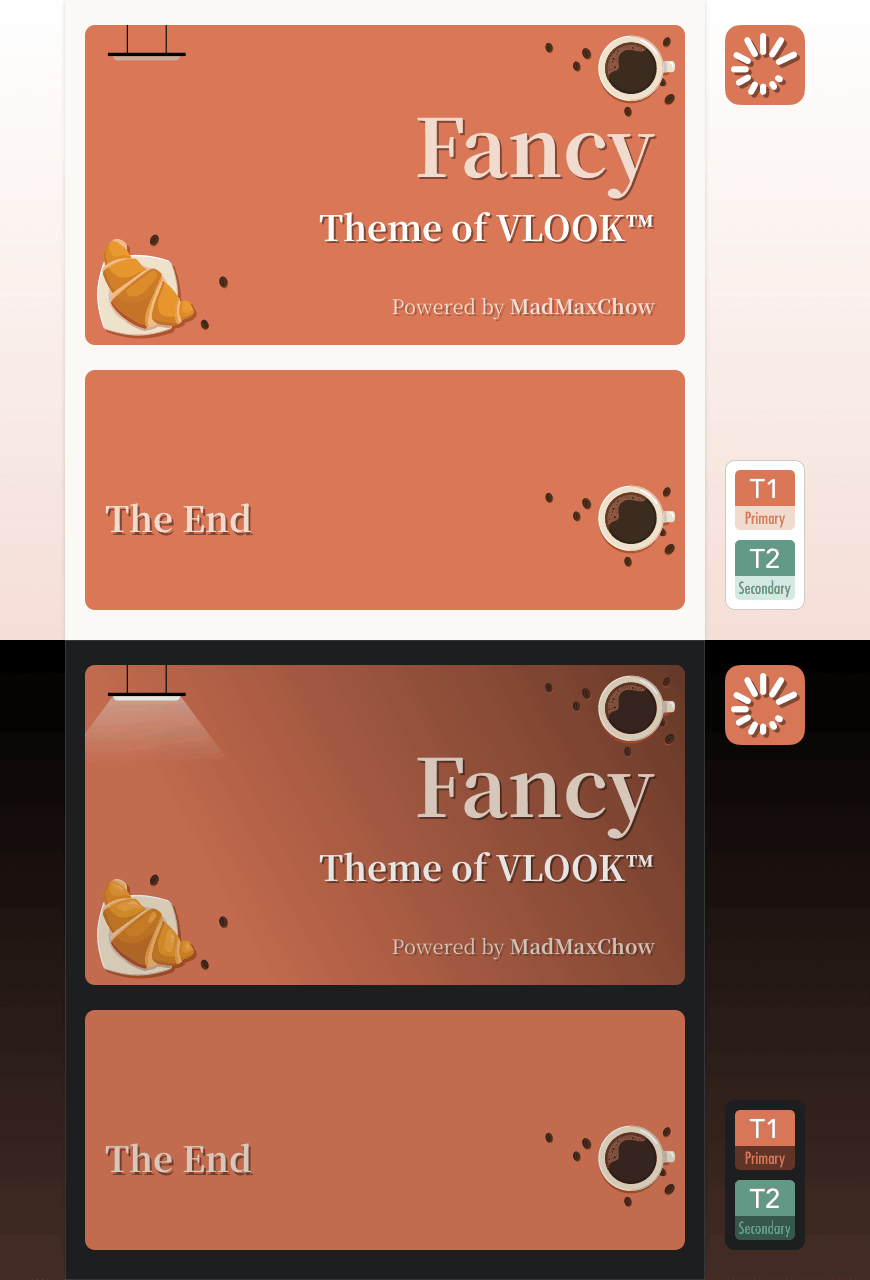
Gn
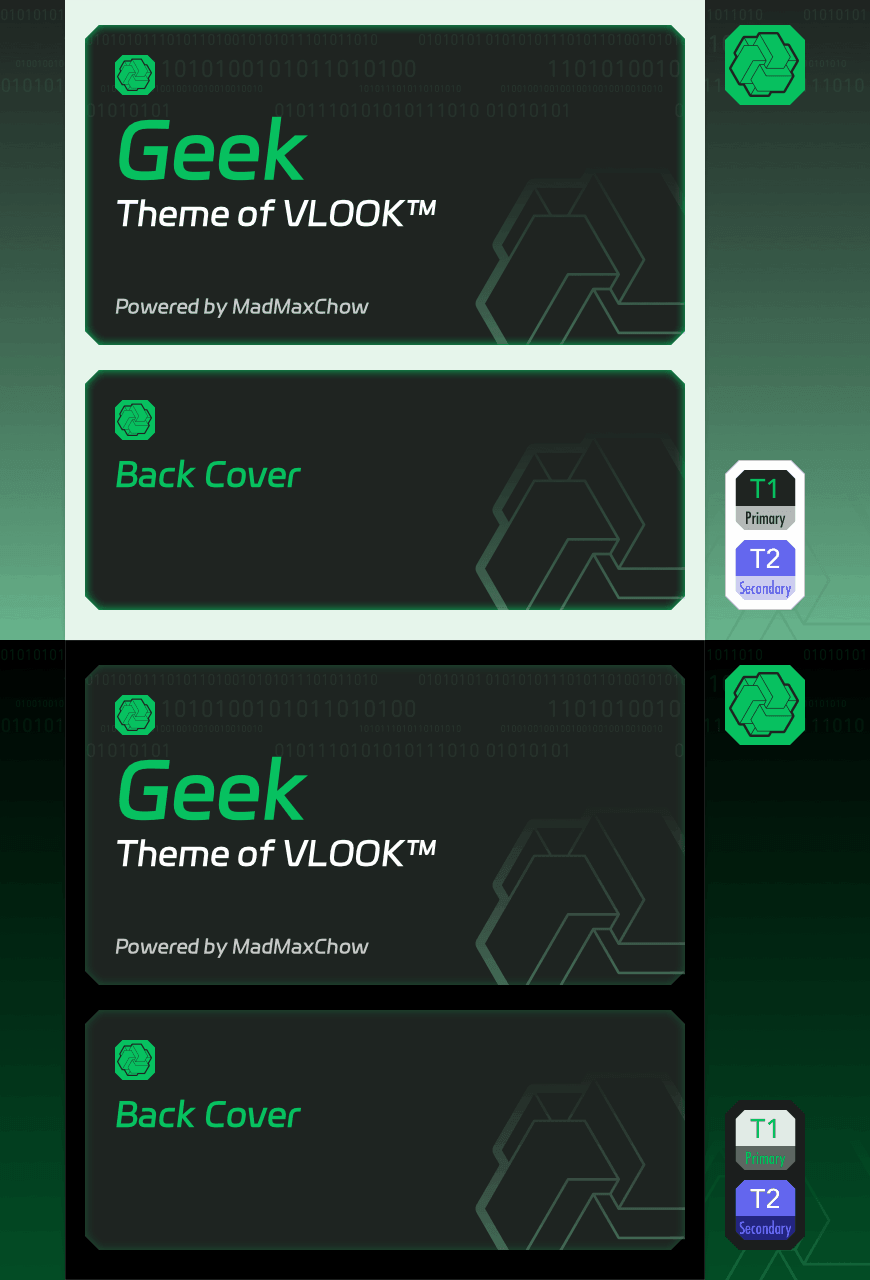
Gy
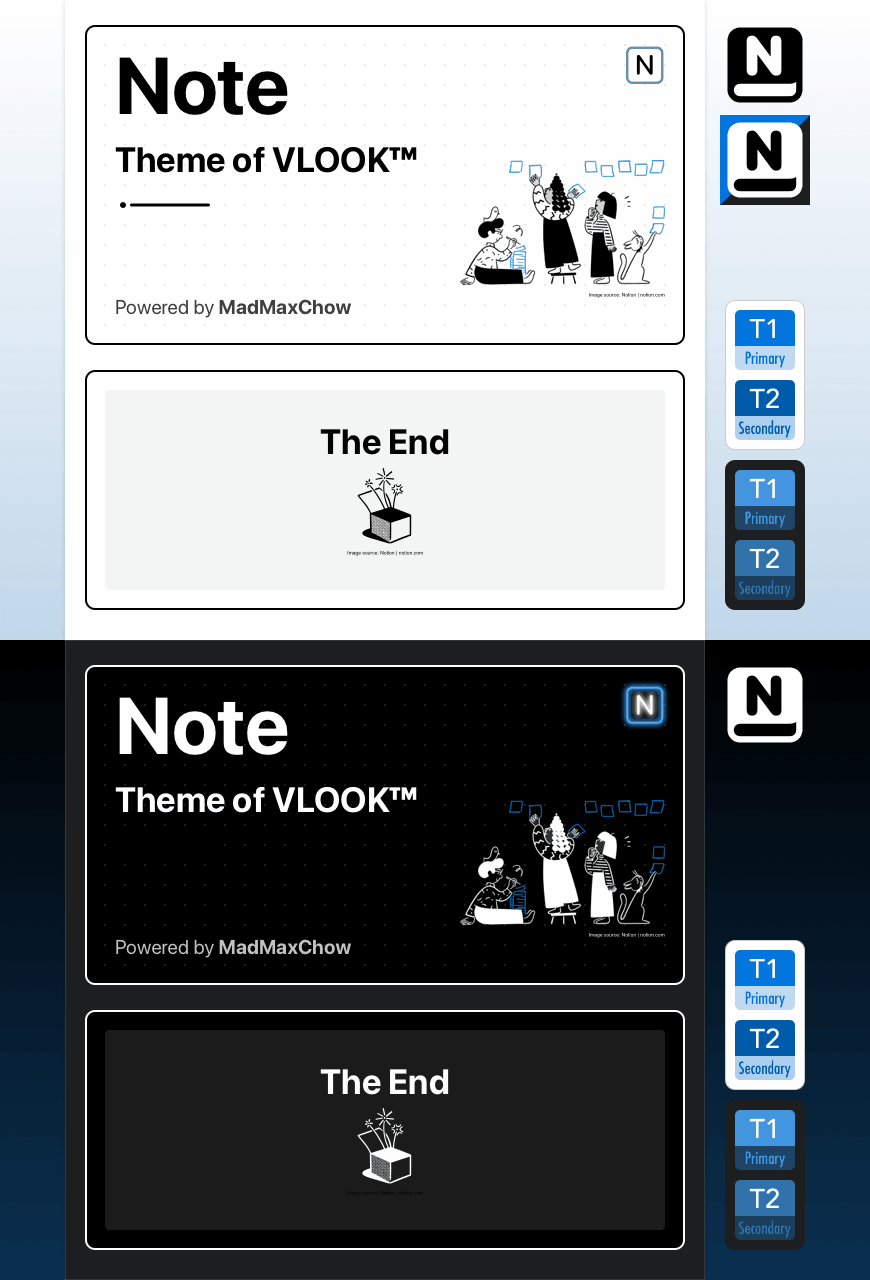
Bu
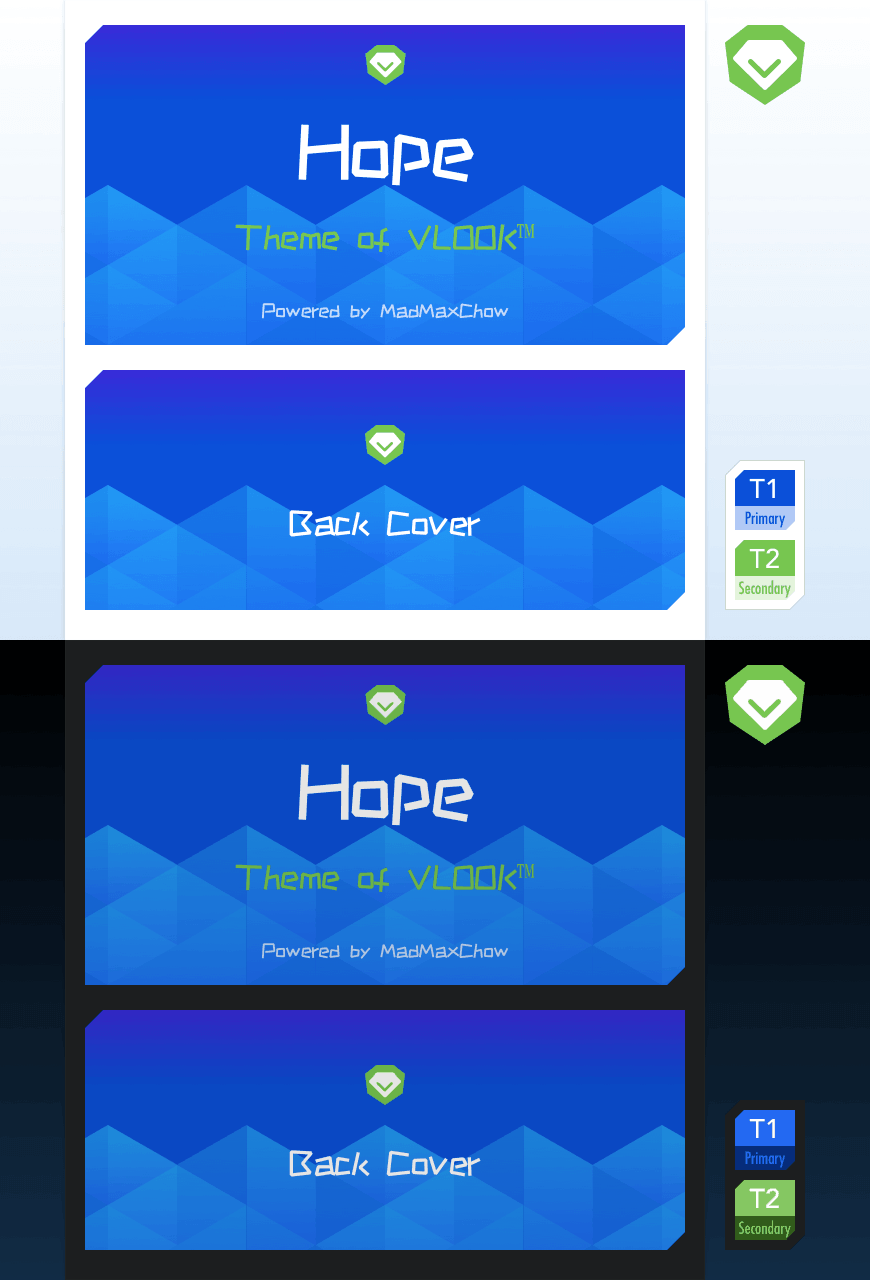
Ye
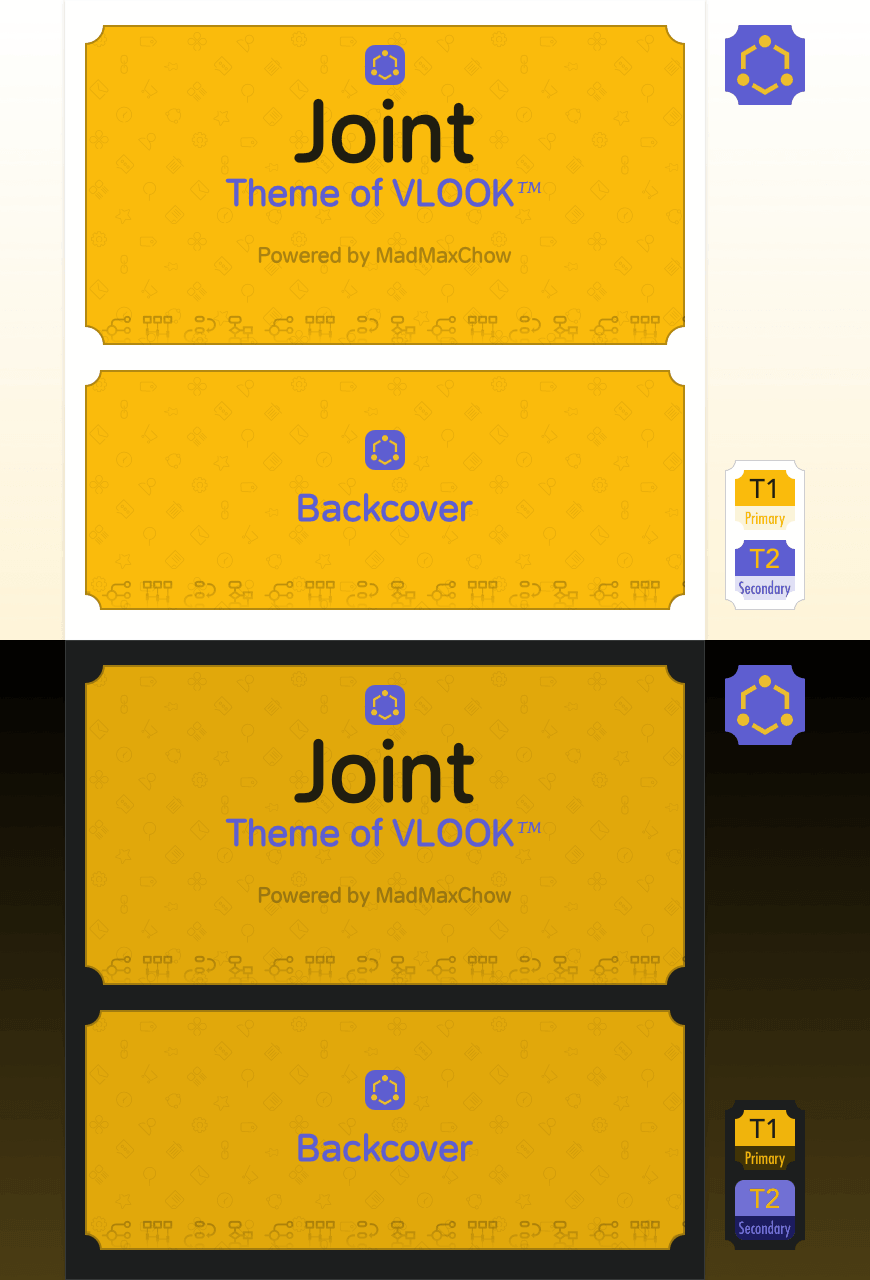
Vn
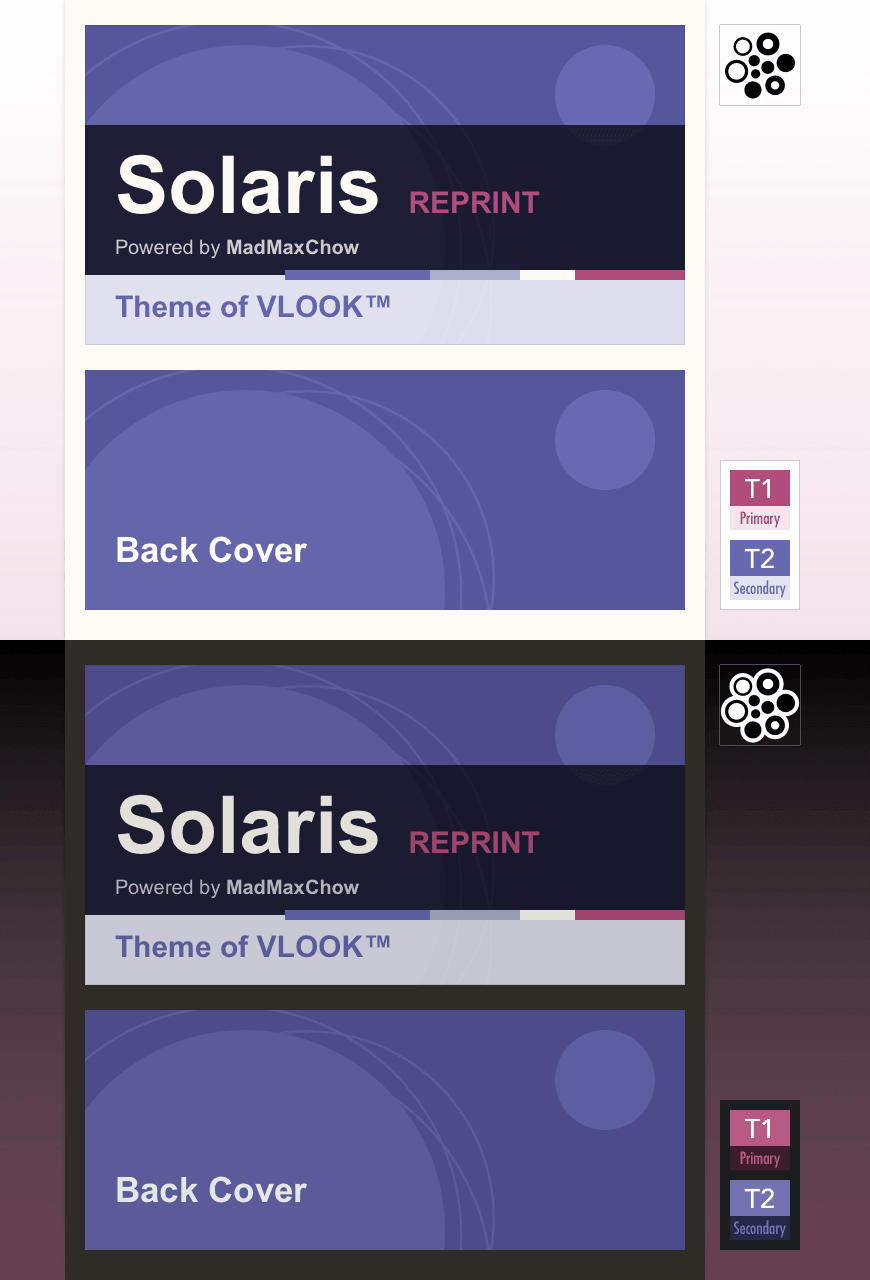
Cy
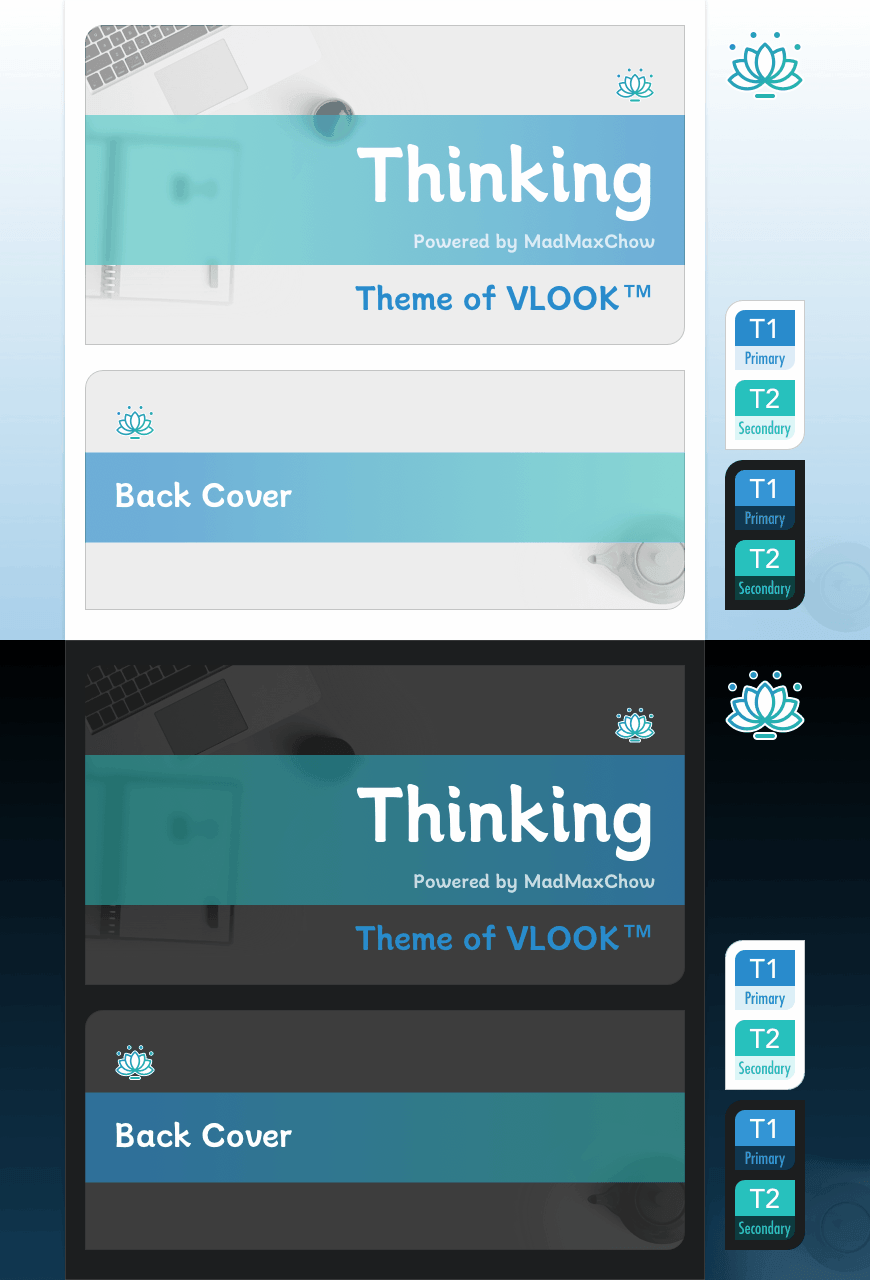
Pu
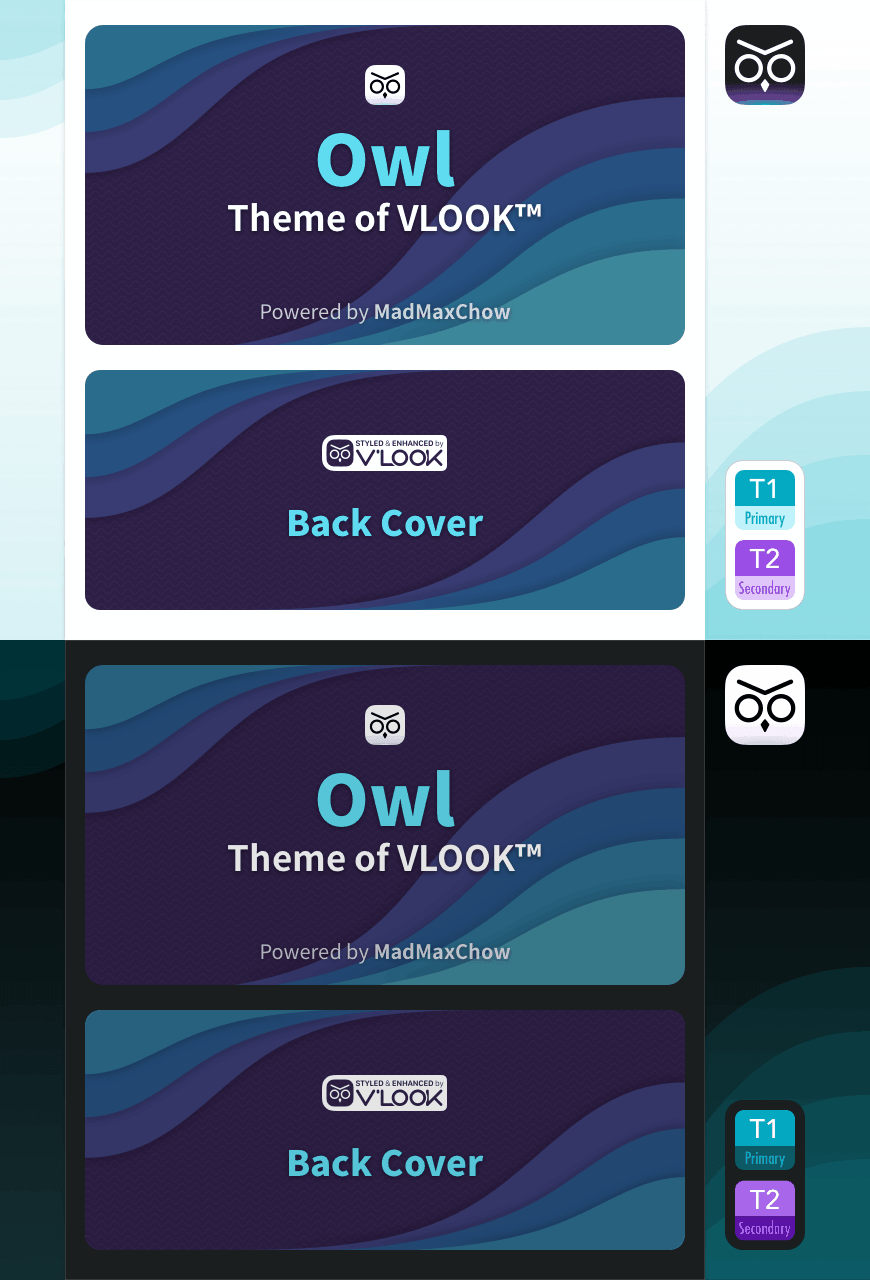
Online plugin users can specify themes via Plugin Tuning Parameters theme.
Custom Template Themes
Now offering theme customization services (sample cases below)

Font Style
Markdown FansQ「Themes boost visual appeal, fonts define document personality!」
VLOOKAT2 Five distinctive Font Style for different preferences.
Availability •••
Editing✓ SupportedGnExport HTML✓ SupportedGn
Select via  in status bar
Also configurable via VIP Themes
Gy

Gy

Gy
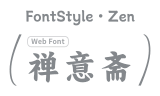
Gy
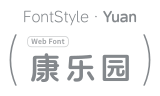
Gy

Gy

Gy
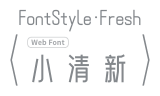
Gy

Some Font Style marked with (WebFont) require an Internet connection to load and take effect properly.
If you cannot connect to the Internet or your network is slow, it is recommended to download the fonts for local installation.
Note
You can choose to install only the font packages for the styles you want to use, or install all of them;
Some fonts are duplicated across different Font Style. If you are prompted that a font already exists during installation, you can skip installing that font.
Important
Applies to all documents under same domain, override via Plugin Tuning Parameters
font
Dark Mode
Markdown FansQ「Want Markdown documents to adapt to system dark mode.」
VLOOKAT2 All VLOOK™ themes auto-adapt to browser/system dark mode.
Availability •••
Editing✓ SupportedGnExport HTML✓ SupportedGn
Toggle via  /
/  /
/  (shortcut A)
Note
Applies to all documents under same domain, override via Plugin Tuning Parameters
cs;To disable auto-switching, use VIP Themes.
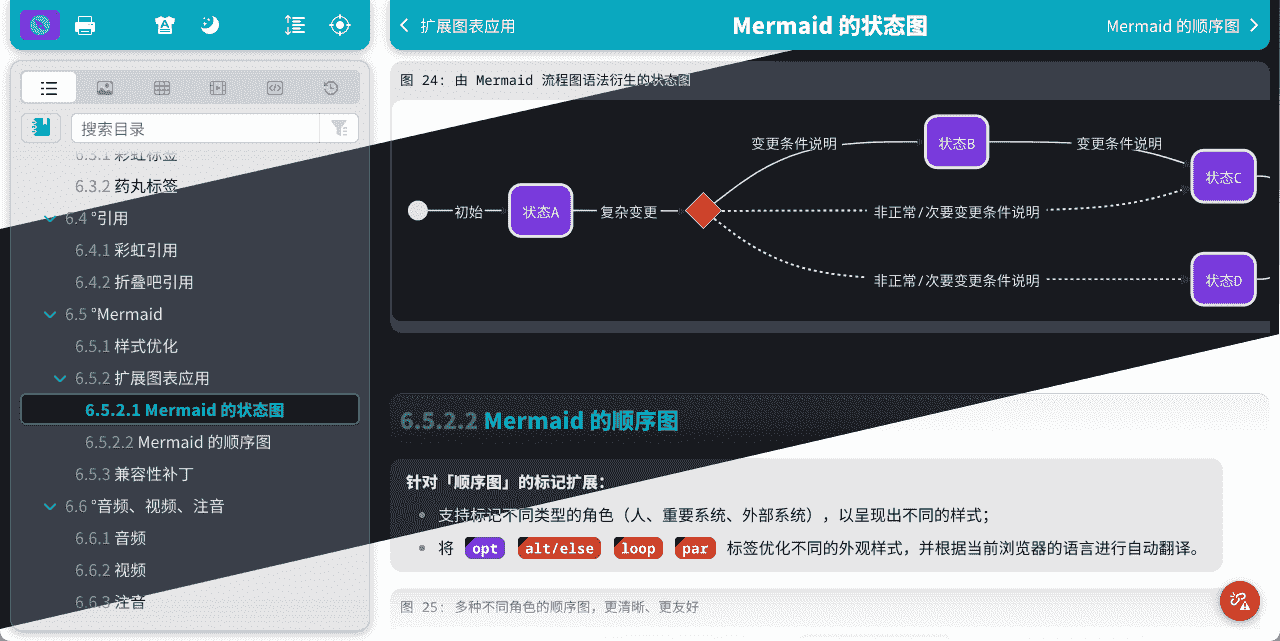
Tip
For better Dark Mode image harmony, try Dark Mode image adaptation.
Gray Mode
Markdown FansQ「Want documents to display in grayscale on memorial days.」
VLOOKAT2 Easily enable grayscale display on specified dates.
Availability •••
Editing× Not SupportedGyExport HTML✓ SupportedGn
Specify Gray Mode dates via Plugin Preset Options vlook-gray-mode in YAML Front Matter
Add Gray Mode Dates
1---2vlook-gray-modeMonth-DayTitle@LanguageCode3# Example:4# 12-13:National Memorial Day@zh;04-05:Tomb-Sweeping Day@zh,ko5---
MonthandDayformat:12-13or04-05
Titleoptional, date description e.g.National Memorial Day
LanguageCodeoptional, applicable languages (comma-separated)e.g.: Chinese
zh, Chinese & Koreanzh,ko, Englishen
Separate multiple dates with semicolons
;Temporarily disable via

tab
Important
VLOOK™ pre-configures Gray Mode for "Chinese National Memorial Day/Tomb-Sweeping Day"
Note
For more about YAML Front Matter settings, see Plugin Preset Options.
Browser Theme Color
Supports the browser top bar theme color (brand color) feature on mobile devices, providing a friendlier and more consistent browsing experience.
Browser support for theme-color varies across platforms and versions. Currently, major browsers that support this standard include:
Safari for iOS
Chrome for Android
For more details, see: Can I use?
For feedback: 


°Content Navigation
Document Library Navigation
Markdown FansQ「I have many Markdown documents on similar topics/projects, hoping to organize and access them conveniently after publishing as HTML.」
VLOOKAT2 Configure a dedicated "Library" for each document to quickly access your "document universe".
Availability •••
Editing× Not SupportedGyExport HTML✓ SupportedGn
After configuring a Library in the document (or when the document contains library-type links), a Library entry will be displayed in the Navigation Center;
Supports configuring multiple links for the Library;
Footnotes automatically generate an entry to view all footnote content.
First, add a YAML Front Matter to the document via the menu: Typora > Paragraph > YAML Front Matter
Then add the
vlook-doc-libconfiguration item and its corresponding content inside the YAML section.
Choose one or more of the following configuration methods as needed:
tab
Library Configuration Method 1 (Simplest)
xxxxxxxxxx31---2vlook-doc-liblibrary.html3---Library Configuration Method 2 (Add title, keywords)
xxxxxxxxxx11vlook-doc-libYour Library Title(library.html "Keywords for navigation center search")
For multiple libraries:
xxxxxxxxxx61---2vlook-doc-lib3library1.html4Open as Library(library2.html "Supports keyword search in the Navigation Center.")5Open in New Tab(library3.html)6---
How to open a library link in a new browser tab?
Add the
targetparameter to the URL. Its values are consistent with the HTML standard and can be set to_blankor a custom value. An additional value,auto, is also supported.Examples:
x1# (Recommended) Open the link only in a new tab of the browser2library.html?target=auto3# Open in a new browser tab (when the original URL already contains other parameters, use the & symbol as the separator)5library.html?other=1&target=_blank6# Open only in a browser tab named (mydoc)8library.html?target=mydoc
How to open a library link in the current browser tab?
The value of
targetis consistent with the HTML standard. It only needs to be set to_self.Example:
xxxxxxxxxx21# Open in the current browser tab2library.html?target=_self
How to display any link from a document inside the library popup?
Simply add the URL parameter
target=vdlto the text link.Examples:
xxxxxxxxxx21[Click here to open the default library](?target=vdl)2[Click here to open Library 2](library2.html?target=vdl)For more examples, see: Link Content Recognition
Tip
If library links match current document, they won't be added (facilitates template management);
When multiple similar documents specify
target=_self, the effect of integrating library links with the table of contents display can be achieved;For more about YAML Front Matter settings, see Plugin Preset Options.
Navigation Center
Markdown FansQ「When documents contain extensive content, just having an outline isn't enough for quick positioning and displaying key resources」
VLOOKAT2 VLOOK™ enhances the table of contents and supports rich indexing of document resources.
Availability •••
Editing× Not SupportedGyExport HTML✓ SupportedGn
Toggle the  button on the left toolbar to "open / close" the navigation center (shortcut N)
Displays hierarchical table of contents and various types of "Library" entries
Categorized indexing of document content, supporting: Images, Tables, Code Blocks, Formula, Multimedia
All content supports Plugin Tuning Parameterskeyword search and Plugin Tuning Parameterstokenized search (separate keywords with spaces)
Important
For Typora-generated table of contents, add the
[TOC]marker after the VLOOK™ cover;If the document has no table of contents or categorized indexing, the navigation center will be collapsed by default;
On desktop, you can hover your mouse over the left side of the screen to open the "navigation indicator", while on mobile or tablet devices, simply tap to open it.
Chapter Navigation
Markdown FansQ「Besides the outline, I want to browse chapter by chapter in order.」
VLOOKAT2 VLOOK™ automatically provides a "Chapter Navigation Bar" at the top of the document.
Availability •••
Editing× Not SupportedGyExport HTML✓ SupportedGn
When scrolling into the main content area, a chapter navigation bar automatically appears at the top (hidden when viewing the cover), supporting chapter-by-chapter browsing for levels 1-5.
Chapter Navigation Shortcuts
| Chapter Navigation Shortcuts | Function (when active) |
|---|---|
| ◀ or , | Plugin Tuning ParametersPrevious chapter |
| ▶ or . | Plugin Tuning ParametersNext chapter |
Figure Navigation
Markdown FansQ「I want to quickly browse all images in the document and jump to their locations.」
VLOOKAT2 All images and Mermaid1 diagrams in the document support one-click fullscreen viewing.
Availability •••
Editing× Not SupportedGyExport HTML✓ SupportedGn
Supports zooming via mouse wheel, touchpad, and touchscreen.
Supports jumping to the corresponding position in the document, viewing the complete illustration index, switching to Picture-in-Picture mode, and more.
Figure Navigation Shortcuts
| Figure Navigation Shortcuts | Function (when active) |
|---|---|
| ◀ or , | Plugin Tuning ParametersPrevious image |
| ▶ or . | Plugin Tuning ParametersNext image |
Long Image & Dual Caption Example

Table Navigation
The functionality is essentially the same as Figure Navigation and also automatically freezes tables.
Footnote Navigation
In technical/academic papers, footnotes are frequently used for supplementary explanations, citations, or notes.
VLOOK™ displays footnotes as popups at current position, avoiding jumps, also accessible via Navigation Center Library List.
Availability •••
Editing× Not SupportedGyExport HTML✓ SupportedGn
Click the superscript after this paragraph to view the footnote2
Quick Action Navigation
Default action is Navigation History
Add custom quick actions via vlook-quick-action in YAML.
Quick actions consist of "Action Icon" and "Action Link" separated by semicolon ; .
Icon format follows Markdown image syntax:  where:
Recommended size:
20 × 20pixelsTitle is optional (hover tooltip)
Link format follows Markdown link syntax: [Note](URL) where:
Note is optional (supplementary hover tooltip)
For images shown on hover, add
?target=qvto URL
Example configuration:
xxxxxxxxxx41---2# Configure quick actions in YAML3vlook-quick-action!Icon Title(my-icon.svg);Note(xxx.png?target=qv)4---For multiple actions:
xxxxxxxxxx71---2# Configure multiple quick actions3vlook-quick-action4!Title1(my-icon1.svg);Note1(url-1.html?target=view)5!Title2(my-icon2.png);Note2(url-2.html)6!Title3(my-icon3.png);Note3(url-3.html)7---Continue Last Reading
Markdown FansQ「Static HTML documents generally can't remember the last reading position~」
VLOOKAT2 VLOOK™ enables every exported static HTML to quickly return to the last reading position.
Availability •••
Editing× Not SupportedGyExport HTML✓ SupportedGn
After opening a previously read HTML document, a "Continue Last Reading" button appears in the top-right corner, clicking it returns to the last reading position;
This entry will automatically hide shortly after, but can be accessed again via the
 button (shortcut H).
Navigation History
Availability •••
Editing× Not SupportedGyExport HTML✓ SupportedGn
Automatically records all navigation history within current document;
Access via
button (shortcut H).
For feedback:
°Content Assistant
Availability •••
Editing× Not SupportedGyExport HTML✓ SupportedGn
Context-aware quick functions for different content types: Tables, Images, Tags, Scratch Card, Code & Code Blocks, Formula, Breadcrumbs
Note
Hover over supported content to activate assistant options.
Copy Content
Copy "Multi-level Tags"
Click segments to copy content including right-side parts, e.g.: Category
Content1Content2Copy "Single-level Tags, Code"
Click to copy content, e.g.:
TagCodeCopy "Code Blocks"
One-click copy entire code block
Copy "Images"
Copy image URL, Try with an image ❯
Fullscreen Mode
The Content Assistant supports one-click fullscreen display for illustrations (images/Mermaid diagrams) and tables.
In fullscreen mode, you can browse forward/backward, jump to the corresponding position in the document, view the complete category index, and more.
Learn more: Figure Navigation ❯ , Table Navigation ❯
Toggle Frozen Table Columns
When the Freeze Table Columns feature is enabled or configured in the theme, you can unfreeze or refreeze columns while viewing the exported HTML.
Hover over the table and use the
button in the top-right Content Assistant to perform the related actions.
Table Reading Mode
Markdown FansQ「With many rows/columns, how to quickly see related cells?」
VLOOKAT2 Works out-of-the-box with VLOOK™~
Hover table, click
to toggle;
Click any cell to highlight its row and column (crosshair);
Navigate with Plugin Tuning Parametersarrow keys ( ▲ ▼ ◀ ▶ ), Enter ⏎ to expand/collapse grouped rows;
Click blank area or ESC to temporarily hide.
Try clicking cells or moving cursor in this table
| Column A | Column B | Column C | Column D |
|---|---|---|---|
| Row 1 | Left-align (long) | Center-align | Right-align (long) |
| Row 2 (long) | Left-align | Center-align (long) | Right-align |
Line Wrap Layout
Markdown FansQ「Need different line-wrapping styles for tables/code blocks.」
VLOOKAT2 VLOOK™ provides out-of-the-box toggle.
Hover "Tables/Code Blocks", click
to toggle "Wrap"/"No Wrap".
Note
VLOOK™ auto-adapts based on content and screen width, see details ❯❯
Picture-in-Picture
Markdown FansQ「Want floating display for images/tables/code/formulas like videos.」
VLOOKAT2 Available out-of-the-box with VLOOK™~
Hover content, click
to enable;
Defaults to 75% size, adjustable via zoom buttons.
Try it on any image/table/code/formula in the document~
For feedback:
°Presentation Tools
Availability •••
Editing× Not SupportedGyExport HTML✓ SupportedGn
Laser Pointer
Markdown FansQ「Need laser pointer for document reviews/presentations.」
VLOOKAT2 Works out-of-the-box with VLOOK™~
Toggle via
(shortcut P).
Spotlight
Markdown FansQ「Need spotlight to focus audience on specific areas.」
VLOOKAT2 Works out-of-the-box with VLOOK™~
Toggle via
(shortcut L);
Adjust size with ⇧ Shift.
Paragraph Roaming
Markdown FansQ「Want paragraph-by-paragraph highlighting for focused browsing.」
VLOOKAT2 Click  (or shortcut) to enter mode (vim-inspired).
Availability •••
Editing× Not SupportedGyExport HTML✓ SupportedGn
Paragraph Roaming Shortcuts_vim-inspired_
| Shortcuts | Function |
|---|---|
| J | Next paragraph |
| K | Previous paragraph |
| ⌘ command / ⌃ Ctrl | Jump 5 paragraphs |
| ⇧ shift | Jump 10 paragraphs |
Presentation View
Switch seamlessly between the traditional flow layout and a slide-based presentation view with a single press of S.
When enabled, the toolbar, navigation center, status bar, and other interface elements are hidden. Press S again or ESC to exit Presentation View.
Tip
In Presentation View, you can still use presentation aids such as the Laser Pointer and Spotlight. Simply activate them using their corresponding keyboard shortcuts.
Zen View
When you need an immersive reading experience, you can press Z to enter "Zen View" with one click.
Once enabled, elements such as the toolbar, navigation center, and status bar will be hidden. Press Z again or ESC to exit "Zen View".
Tip
In "Zen View", if you need to use presentation aids such as Laser Pointer, Spotlight, and Paragraph Roaming, you can activate them directly using their corresponding keyboard shortcuts.
Mermaid Element Highlighting
Hover to highlight Mermaid chart elements (nodes, subgraphs, text) for focused presentations, Try with Mermaid ❯
Content Width Adaptation
To ensure a good reading experience, two modes are provided for the content width: fixed width and fit to window width, along with a mechanism to switch between them:
For exported HTML, click the arrow on the right to toggle the content width between different modes
During editing:
Supports setting to fixed width, fit to window width, or auto switch
For auto switch, you can toggle between different width modes using the following methods:
Show / Hide the left sidebar (Outline / Files)
Shortcut: ⇧ Shift + Cmd / Control + L
Enable / Disable Focus Mode
Shortcut: F8
Reading Progress
A friendly reading progress indicator has been added at the bottom of the document, allowing you to check your reading progress at any time. It also works regardless of whether the scrollbar is automatically hidden.
For feedback:
°Publishing Tools
Availability •••
Editing× Not SupportedGyExport HTML✓ SupportedGn
Mark Content not to Publish
Markdown FansQ「How to handle unfinished/temporary content elegantly?」
VLOOKAT2 Markdown's "Strike" + headings = elegant content control~
Use Markdown "strikethrough" to mark unpublished content:
Specific Chapters
Level 1-6 headings including sub-chapters.
Method: Apply strikethrough to heading text
Specific Blockquotes
Blockquotes with subtitles or folding
Method: Apply strikethrough to subtitle/folding title
Specific Table Columns
One or multiple columns
Method: Apply strikethrough to column headers per Table Column Format
Unpublished bold subtitle blockquoteThis won't be published
~~Unpublished highlighted subtitle blockquote
This won't be published
Unpublished folded blockquoteThis won't be published
Tip
For cases not suitable for adding strikethrough, you can also specify it through "Plugin Preset Options";
This feature can be disabled via VIP Themes, or temporarily deactivated by adding spaces outside the strikethrough
~~.
Publish as PDF
After exporting to HTML with VLOOK™, you can enjoy rich document layout capabilities.
However, using Typora's built-in "Export to PDF" may result in loss of formatting.
To publish in PDF format with full layout support, use the "Publish as PDF" feature provided in the VLOOK™ exported HTML.
Availability •••
Editing× Not SupportedGyExport HTML✓ SupportedGn
Open the exported HTML file and click the
 button ( shortcut ⌃ Ctrl / ⌘ command + P ) in the bottom-right corner to launch the feature.
Before printing, the page will adapt its styles for print output. Then use your browser’s "Print to PDF" / "Save as PDF option to generate the final PDF.
Provide the following control options
Enable / Disable: Cover Adapted for A4 Paper
Enable / Disable: Include Outline
Enable / Disable: Expand Blockquote Folding
Enable / Disable: Cancle Image Filter (Blur)
Enable / Disable: Expand Table Row Group
Enable / Disable: Reveal Scratch Card
Page Break Control
Method 1
By default, PDF export inserts a page break at each level-1 heading.
If you need a customized default paging rule, you can adjust it through VIP Themes.
Method 2 (Experimental)
Supports manually adding page break markers. Syntax:
Based on the Markdown horizontal rule syntax
---, appendpageafter it, i.e.---page(must occupy its own line).Rd
Example start: The content below ↓↓↓ occupies a single page via the "page break marker"
---page
This content occupies 1 full page by adding ---page page break markers before and after.
This content occupies 1 full page by adding ---page page break markers before and after.
This content occupies 1 full page by adding ---page page break markers before and after.
---page
Example end: The content above ↑↑↑ occupies a single page via the "page break marker"
Document Footer
You can add personalized footer content to a document, such as copyright information, ICP details, navigation links, and any other content you want to place at the end of the document.
Currently, the following three methods are supported for adding a document footer
YAML
Supports defining the footer via the document’s YAML Front Matter, suitable for specifying different footers for different documents.
T1
Built into VIP Themes
Supports being built into VIP Themes, suitable for using a unified footer across all documents.
For individual documents, a different footer can still be specified separately via YAML.
T2
Default Footer
If the document footer is not specified using the above two methods, the document title is used as the default footer content.
Gy
To maximize personalization and template-based management, extended support is provided for HTML layout and YAML field references.
Supported YAML fields (referenced using double curly braces)
{{title}}— Document title
{{author}}— Author
{{date}}— Publication date
{{version}}— Document Version
{{copyright}}— Copyright information
{{rights}}— Rights statement
Example of configuring document footer content in YAML (Menu path: Typora ▸ Paragraph ▸ YAML Front Matter):
xxxxxxxxxx121---2titlexxx3authorxxx4datexxxx-xx-xx5copyrightxxx6
7# Example 18vlook-footertitle<br><br>author<br>date (version)9
10# Example 211vlook-footer<a href="xxx.com">More great content</a><br><br>copyright12---Social Sharing
VLOOK™ supports Open Graph Protocol (enhances how content appears when shared on social media), automatically generating share appearances based on preset OGP tags.
Availability •••
Editing× Not SupportedGyExport HTML✓ SupportedGn
Important
OGP tags are specified via YAML Front Matter like Plugin Tuning Parameters;
Since OGP tags contain colons
:, wrap them in double quotes in YAML, e.g.:"og:image": https://xxxxx.png.
VLOOK™ export config includes common OGP tags (see table below), additional tags can be added manually.
Supported Open Graph Tags
| OGP Tag | YAML Name | Description |
|---|---|---|
og:title | "og:title" | Page title (main share title) |
og:type | "og:type" | Page type (website, video, article etc.) |
og:image | "og:image" | Associated image (main share image) |
og:url | "og:url" | Canonical URL |
| Other Common Tags | == | == |
> og:description | "og:description" | Brief page description (shown when shared) |
> og:site_name | "og:site_name" | Website name |
> og:locale | "og:locale" | Content locale/language |
> og:video | "og:video" | Video URL if page contains video |
> og:audio | "og:audio" | Audio URL if page contains audio |
YAML Front Matter Example
xxxxxxxxxx61---2"og:title": Share Title Here3"og:image": Image URL Here4"og:url": Target URL Here5"og:description": Share Description Here6---tab
Note
For more about YAML Front Matter settings, see Plugin Preset Options.
Tip
To verify OGP configuration, use Meta's Sharing Debugger tool.
Link Map
External Link List & Anchor Counts
View all external links in current document and their anchor reference counts.
External Anchor Validation
Quickly check validity of external link anchors as documents grow.
NoteExternal documents must also be VLOOK™ generated.
Tip
Click  at bottom-right to view link map (shortcut M), then click "Check Anchors" on entries with anchors.
Long Content Auto-Collapse
VLOOK™ automatically collapses long images, tables, and code to save space~
Important
Content inside blockquotes or folded blockquotes is excluded from auto-collapsing.
Custom Welcome Page
Markdown FansQ「VLOOK™ documents show a welcome page during loading - can I customize it?」
VLOOKAT2 The welcome page closes automatically after loading, but customization is supported.
Use Plugin Preset Options vlook-welcome in YAML Front Matter:
Custom Welcome Page Example
xxxxxxxxxx31---2vlook-welcomeCustom welcome message here, can include HTML like <strong>Welcome</strong>3---Note
For more about YAML Front Matter settings, see Plugin Preset Options.
Link Validation & Standardization
Broken Image Sources
Auto-detection with prompts, example:
Rd


Broken Audio/Video Sources
Auto-detection with prompts, example:
Rd
Invalid Internal Links (Anchors)
Auto-check for broken page-internal links, example invalid link
How to check external link anchors? See Link Map ❯❯
Rd
Duplicate Headings
To avoid navigation conflicts
(Controllable via Plugin Preset Options
vlook-header-dup)Ye
Anchor Standardization Check & Fix
Checks/fixes punctuation in link anchors
Gy
Warning
Issues needing attention show
 at bottom-right - click for details;
VLOOK™ uses "lazy loading" for images/media - resource checks trigger when scrolled into view.
Link Content Recognition
VLOOK™ automatically recognizes link content types, showing different cursors (adapting to Light/Dark Mode)
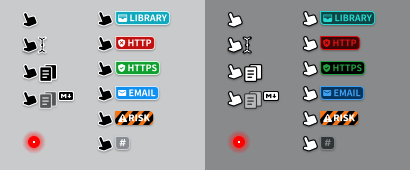
VLOOK™ Library Links
Open Default Library (first library if multiple exist)
Open specific file as library: Document Library (En)
T1!
Recognize Mainstream Hyperlink Resources
#Internal links / Non-secure links / Secure links / Email
Gy!
High-Risk Resources
.exe files / Plugin Tuning Parameters.sh files
Rd!
Link Content Conversion
Automatic .md Link Conversion
Typora allows specifying any .md document (or with anchors) during editing for easy cross-document navigation, but exported HTML doesn't automatically convert to .html, which isn't suitable for HTML publishing.
By default converts
*.mdlinks tohtml, can specify any extension.To disable or specify conversion, use Plugin Tuning Parameters
xmd.Bu!
Force External Links to Open in New Tab
For better reading experience, external links (http/https) automatically open in new tab.
Vn!
Lazy Loading for Images
Markdown FansQ「When documents contain many images, exported HTML loads them all immediately, affecting opening speed and wasting bandwidth.」
VLOOKAT2 Supports delayed loading - images only load when scrolled into view.
During loading, it supports displaying the default placeholder image specified in the Custom Theme.
How to enable lazy loading?
Zero configuration! Just use VLOOK™ built-in themes or VIP Themes, export normally to HTML.
Word Count & Reading Time
Displays word count (separating Latin/CJK characters) and estimated reading time at bottom-right.
For feedback:
°Miscellaneous
Plugin Preset Options
Configure Plugin Tuning ParametersVLOOK™ presets via Plugin Tuning ParametersYAML Front Matter:
First add YAML content (Typora menu: Paragraph ▸ YAML Front Matter);
Then configure presets, example format:
Configure VLOOK™ Presets via YAML
xxxxxxxxxx61---2<Preset Option 1><Content 1>3<Preset Option 2><Content 2>4...5<Preset Option n><Content n>6---
| Plugin Preset Option | []Preset in Custom Theme | Description | Values & Explanation |
|---|---|---|---|
| YAML Standard Options | YAML Front Matter standards | ||
> title | Title | ||
> author | Author | ||
> keywords | Keywords | ||
vlook-doc-lib | Document library URL | Supports multiple, see: Document Library Navigation | |
vlook-gray-mode | Gray Mode dates | See: Gray Mode | |
vlook-header-autonum | Y | Heading auto-numbering | See: Heading Auto-numbering Disable numbering via custom theme |
vlook-header-dup | Allowed duplicate headings | • Content exempt from heading duplication checks • Supports regex (Literal format e.g. /pattern/flags)Separate multiple with semicolons ; | |
vlook-image-host | Default image host | Mainly for Safari opening local HTML with image silhouettes e.g. https://xxx.abc.com/images | |
vlook-welcome | Custom loading welcome page | See: Custom Welcome Page | |
vlook-query | Y | Preset Plugin Tuning Parameters | See next section: Plugin Tuning Parameters |
vlook-unpub | Specify Content Not to Publish | Supports regex (Literal format e.g. /pattern/flags)Separate multiple with semicolons ; |
Plugin Tuning Parameters
Configure VLOOK™ features/styles via "Plugin Tuning Parameters", prioritized in this order when multiple exist:
Method 1: Via document URL parameters (Query)
Method 2: Via Markdown's YAML Front Matter
Method 3: Via VIP Themes
tab
Method 1: URL Parameters
xxxxxxxxxx41MyDoc.html?Param1=Value&Param2=Value...&ParamN=Value2(Separate multiple with &)3
4Example: MyDoc.html?ws=none&tag=t1
Method 2: YAML Parameters
xxxxxxxxxx51---2vlook-queryParam1=Value&Param2=Value...&ParamN=Value3# Separate multiple with &4# Example: ws=none&tag=t15---VLOOK™ Plugin Tuning Parameters
| Parameter | Description | Default | Values & Explanation |
|---|---|---|---|
| Layout | |||
> badge | Default color for multi-level tag | T1 | ColorCode - Preset colors, see here |
> coating | Default color for Scratch Card | Gy | ColorCode - Preset colors, see here |
> quote | Auto-convert blockquotes to colored | off | off - DisableColorCode - Preset colors, see here |
> tag | Default color for tag | T2 | Preset colors, see here |
| Captions | |||
> capnum | Captions are automatically numbered | on | off - Disableon - Enable |
> capgroup | Group caption numbering by chapter | on | off - Disableon - Enable |
> capmini | Only generated caption type, example: Figure 1, Figure 2, etc. | off | off - Disableon - Enable |
> capblank | Whether to insert a blank caption when no caption text is provided. Takes effect only with a custom theme | off | Specific types:figure - Figurecodeblock - Codeblock |
| Tab Group | |||
> tabcap | Display the caption number (e.g., Table 1-2) in Tabs of TabGroup | off | off - Hideon - Show |
> tabico | Display content type icon in Tabs of TabGroup | line | off - Hideline - Line Stylesolid - Solid Styleflat - Flat Style |
| Appearance | |||
> cs | Force color scheme | auto | light - Force Light Modedark - Force Dark Modeauto - Follow system |
> gray | Specify whether to enable Gray Mode | on | off - Disableon - Enableforce - Force enable for preview |
> radius | Force corner radius (overrides theme) | none - No roundingsmall - Small radiusbig - Large radius | |
> sts | Status bar display | show | hide - Hideshow - Show |
> vico | Specify the icon style of the plugin UI | solid | solid - Solid Styleflat - Flat Style |
| Interaction | |||
> fold | Auto-collapse long content Separate types with + | on | off - Disable allon - Enable allSpecific types: table - Tablesfigure - Imagescodeblock - Codelist - Lists (unimplemented) |
> tr | Default table reading mode state | off | off - Disableon - Enable |
> ws | Welcome page behavior | auto | auto - Auto-close after loadingwait - Manual closeoff - Hide1~60 - Delay seconds |
| Publishing | |||
> unpub | Handle unpublished content | on | off - Disableon - Enable |
> xmd | Convert *.md links to new extension(Globally or per-link) | html | off - Disable{ext} - Target extension e.g. php htm |
> pdf | Activate the "Publish as PDF" for the exported HTML file | on | off - Disableon - Enable |
| Navigation | |||
> nav | Initial navigation center state | auto | auto - Auto-collapse on cover/expand in contenthide - Collapsed |
> toc | Initial TOC auto-collapse level | 1 | 0 - Expand all1~5 - Collapse to level |
> vdl | Library feature toggle | on | off - Disableon - Enable |
| Debug | |||
> reset | Force reset browser-stored VLOOK data | true | |
> tab | Force enable/disable tab groups | on | off - Disableon - Enable |
Shortcuts
VLOOK™ features support keyboard shortcuts for efficiency.
Shortcut Summary
| Category | Function | Shortcut |
|---|---|---|
| Common | Switch Light / Dark Mode | A |
| : | Show/hide Navigation Center | N |
| : | Search navigation content | / |
| : | Open Link Map | M |
| : | Open Broken Links | E |
| : | Open navigation history | H |
| : | Publish as PDF | ⌘ command / ⌃ Ctrl + P |
| Tab Groups | Next tab content | tab |
| : | Previous tab content | ⇧ Shift + tab |
| Table Reading Mode | Move focused cell | ▲ ▼ ◀ ▶ |
| : | Expand/collapse row groups | Enter ⏎ |
| Presentation Tools - Paragraph Roaming | Start paragraph roaming | J or K |
| : | Next paragraph | J |
| : | Previous paragraph | K |
| : | Jump 5 paragraphs | ⌘ command / ⌃ Ctrl |
| : | Jump 10 paragraphs | ⇧ shift |
| : | Exit paragraph roaming | ESC |
| Presentation Tools - Others | Enable/Disable Spotlight | O |
| : | Adjust spotlight size | ⇧ Shift |
| : | Enable/Disable Laser Pointer | P |
| : | Enable/Disable Zen View | Z |
| Chapter Navigation | Plugin Tuning ParametersPrevious chapter | ◀ or , |
| : | Plugin Tuning ParametersNext chapter | ▶ or . |
| Figure Navigation | Start Figure Navigation | I |
| : | Plugin Tuning ParametersPrevious image | ◀ or , |
| : | Plugin Tuning ParametersNext image | ▶ or . |
| : | Exit Figure Navigation | ESC |
| Table Navigation | Same as described in “Figure Navigation” | == |
For feedback:
Extended Content
Heading Content Notes
Avoid punctuation in headings (e.g.
,、?_etc.)If necessary, omit them when linking to the heading
Example: For heading "Title、Title?", link as
标题标题
Avoid spaces in headings - replace with hyphens
-
Image Address Extension Notes
tab
Image Address without Query parameters
Add
?before URL parameters;For existing parameters, separate with
&.Example-1:
Example-2:
Important
If URL contains anchor (e.g.
xxx.png#icon), add Query parameters before anchor.
Image URL Anchors
Use anchors for quick image formatting, see: °Images
Multiple anchors allowed, e.g.
#card#fixmax
Color Wheel Schemes
| Scheme Example | Description |
|---|---|
 | Monochromatic Uses dark/medium/light tones of one color Creates lightness hierarchy without color variation. Always produces reliable results in design. |
 | Analogous Adjacent colors on wheel (e.g. yellow-orange, yellow, orange) Shares common primary colors (yellow/red here). Creates low-contrast harmony. Rich and visually pleasing. |
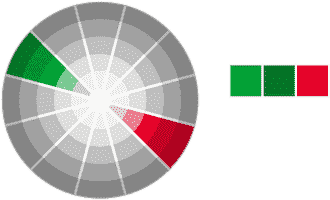 | Complementary Opposite colors on wheel (e.g. red/green) Strong contrast conveys energy/excitement. Best when one color dominates (e.g. blue area with orange dots). |
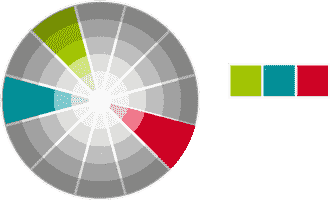 | Split-Complementary Base color + analogs of its complement Combines analogous harmony with complementary contrast. Red stands out more in this example. |
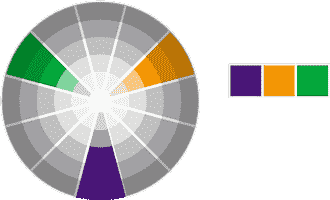 | Triadic Secondary colors naturally harmonize (green/orange/purple) Any two share one primary color. All three together create rich, balanced palettes. |
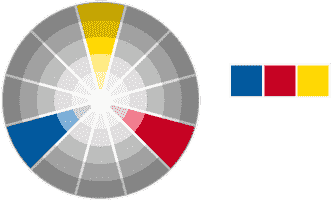 | Primary Rare to use all three primaries Red+yellow is popular (fast food/gas stations). Blue+red works when separated (avoids clash). |